Documentation
Keep your projects safe and in sync — automatically. WaveDrive lives in your operating system status bar and syncs and backs up your mission-critical files. WaveDrive requires a free WavePlan account to get started.
Introduction
What is WaveDrive?
WaveDrive is a native macOS cloud backup and sync application built for audio engineers. It keeps your DAW projects, bounces, samples, and reference libraries versioned and synced across every machine you work on — automatically, in the background, with zero impact on your session.
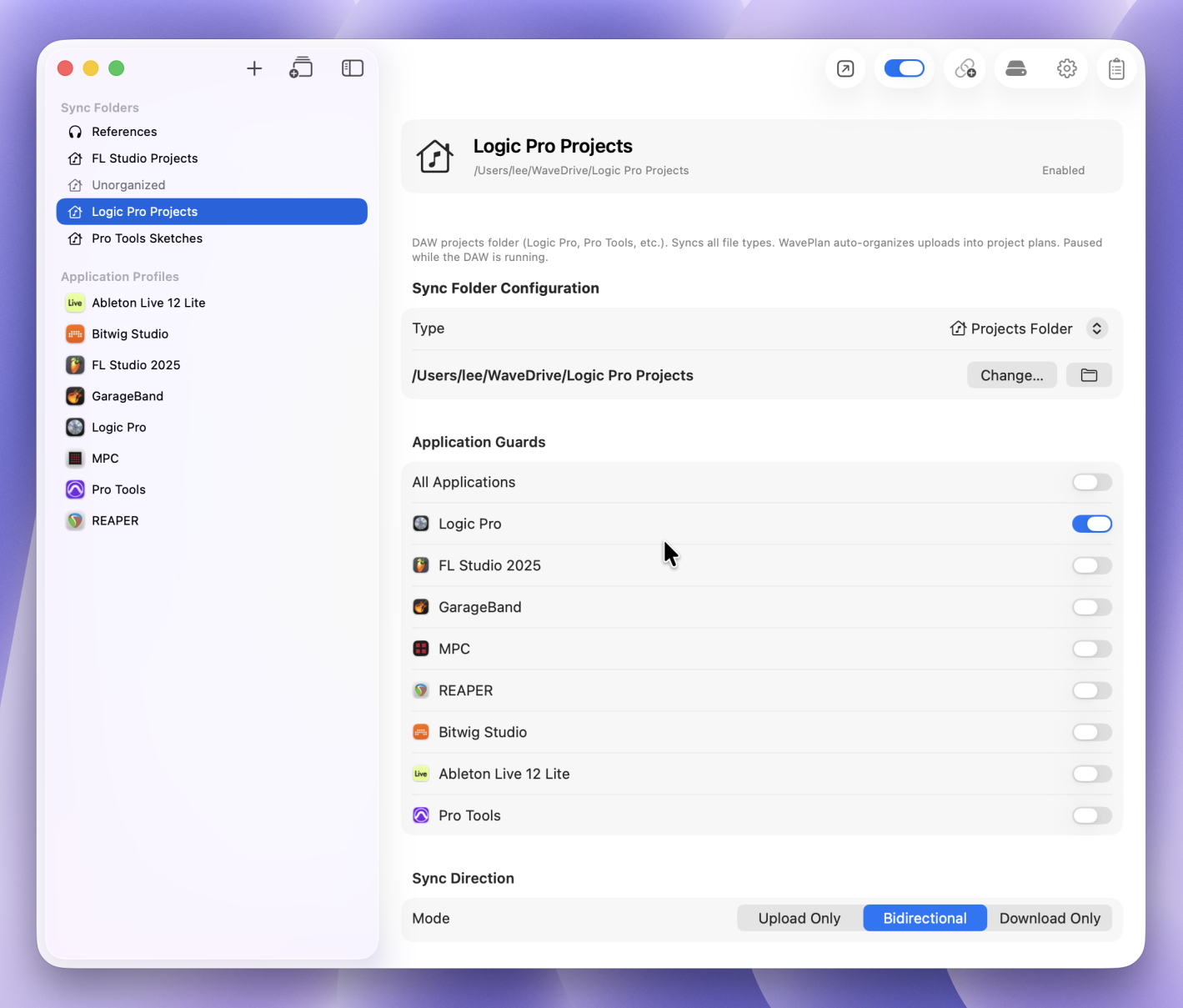
Every file change is captured as a checkpoint you can restore to at any time. Deduplicated storage means the same sample used across ten projects only counts once against your quota. Three sync modes — upload, download, and bidirectional — let you tailor each folder to the way you actually work, whether that's backing up bounces, pulling a project library onto a second machine, or keeping a reference collection current everywhere.
WaveDrive works hand-in-hand with WavePlan, the browser-based mix planning workspace. Files you sync with WaveDrive appear in WavePlan ready to annotate, compare, and plan against — and anything you restore in the browser syncs back to your Macs. Together they form one continuous studio environment, from DAW to web and back again.
-
Versioned Cloud Backup
Every save, overwrite, and deletion is captured as a version. Restore any file or entire folder to any point in time — restoring adds a new version, so nothing is ever lost.
-
Three Sync Modes
Upload Only for bounces and active projects, Download Only for pulling your library onto another machine, Bidirectional for reference collections that grow everywhere you work.
-
Deduplicated Storage
The same sample in every project costs you once. Identical files are counted a single time regardless of how many folders they appear in, passing storage savings straight back to you.
-
DAW-Aware Sync Priority
WaveDrive detects when your DAW has projects open. Choose aggressive save-by-save versioning while you work, or lazy sync that waits until projects are closed — no impact on your session's CPU budget.
-
Multi-Device Sync
Sync your projects across every Mac you work on. A project saved in one studio appears on every other machine, faithfully restored with the same folder structure and file versions.
-
Lives in Your Menu Bar
WaveDrive sits quietly in your macOS menu bar. It runs at login, watches your configured folders, and keeps your library current while you work — nothing to open, nothing to remember.
Getting Started
How WaveDrive Works
WaveDrive watches your sync folders for changes and processes them according to your configured sync mode and rules. Three real-world scenarios illustrate how the pieces fit together.
Studio backup to cloud and local server
Keep your studio projects safe in two places at once — a local server replica and a versioned cloud backup.
-
1
On your studio Mac, set your project folder’s sync mode to Upload Only. Every new or changed file is pushed to your WavePlan account as a versioned checkpoint.
-
2
Install WaveDrive on your local server or NAS-connected Mac. Add the same project folder with its sync mode set to Download Only — it pulls a complete replica from WavePlan without ever writing back.
-
3
Your studio Mac keeps working as normal, your server holds a faithful copy of every project, and WavePlan stores a versioned, deduplicated backup of every previous version — all without lifting a finger.
Multi-device sync between studio and laptop
Work on the go and pick up exactly where you left off in the studio.
-
1
Install WaveDrive on both your studio desktop and your laptop. Set the same project folder to Bidirectional on each machine.
-
2
Changes made on either machine sync through WavePlan — a project saved on the laptop appears on the studio desktop, and vice versa. Every change is captured as a version along the way.
-
3
Both machines stay current with the same files and folder structure. Version history follows every file, so you can restore to any point in time from either computer.
Sync, plan, and reference-check with WavePlan
Combine WaveDrive’s sync with WavePlan’s browser-based planning tools for a complete studio-to-web workflow.
-
1
Set up Bidirectional sync as above. Your projects are versioned, deduplicated, and available on every machine you work on.
-
2
Open WavePlan in any browser. Your synced projects are ready to work with — annotate waveforms, run reference checks, and build mix plans using WavePlan’s planning tools.
-
3
Your plans and annotations live alongside your audio files. When you next open the project in your DAW, everything WavePlan produced is right there — a plan to follow, references to match against, and a version history you can trust.
Getting Started
Create Your Account
WaveDrive and WavePlan share a single account. You can create it in either place — both paths give you full access to both products, and the account is free at the Silver tier.
Simply choose the path that matches how you want to get started.
Sign up in WaveDrive
Best if you want cloud backup and sync right away and aren’t exploring WavePlan’s mix planning tools yet.
-
1
Download and install WaveDrive. Open it — it will appear as an icon in your menu bar.
-
2
Click the menu bar icon and choose Create Account. Fill in your details and you’re done.
-
3
Your WaveDrive app is automatically linked to your new account — there is no Device Link step. You can skip directly to Quick Start and add your first sync folder.
Sign up on the WavePlan website
Best if you want to explore mix planning first or already have a WavePlan account. WavePlan is browser-based and works on any operating system — it runs in a web browser, not your computer.
-
1
Go to waveplan.live/register and create your free account.
-
2
Explore WavePlan’s planning tools from any browser — annotate waveforms, run reference checks, and build mix plans before you even install a desktop app.
-
3
When you’re ready to sync files, download and install WaveDrive. Because your account was created on the website, you’ll link WaveDrive to it using Device Link.
Getting Started
Linking Your WavePlan Account
Device Link connects WaveDrive to an existing WavePlan account. If you created your account directly in WaveDrive, your app is already linked — you can skip this section and go straight to Quick Start.
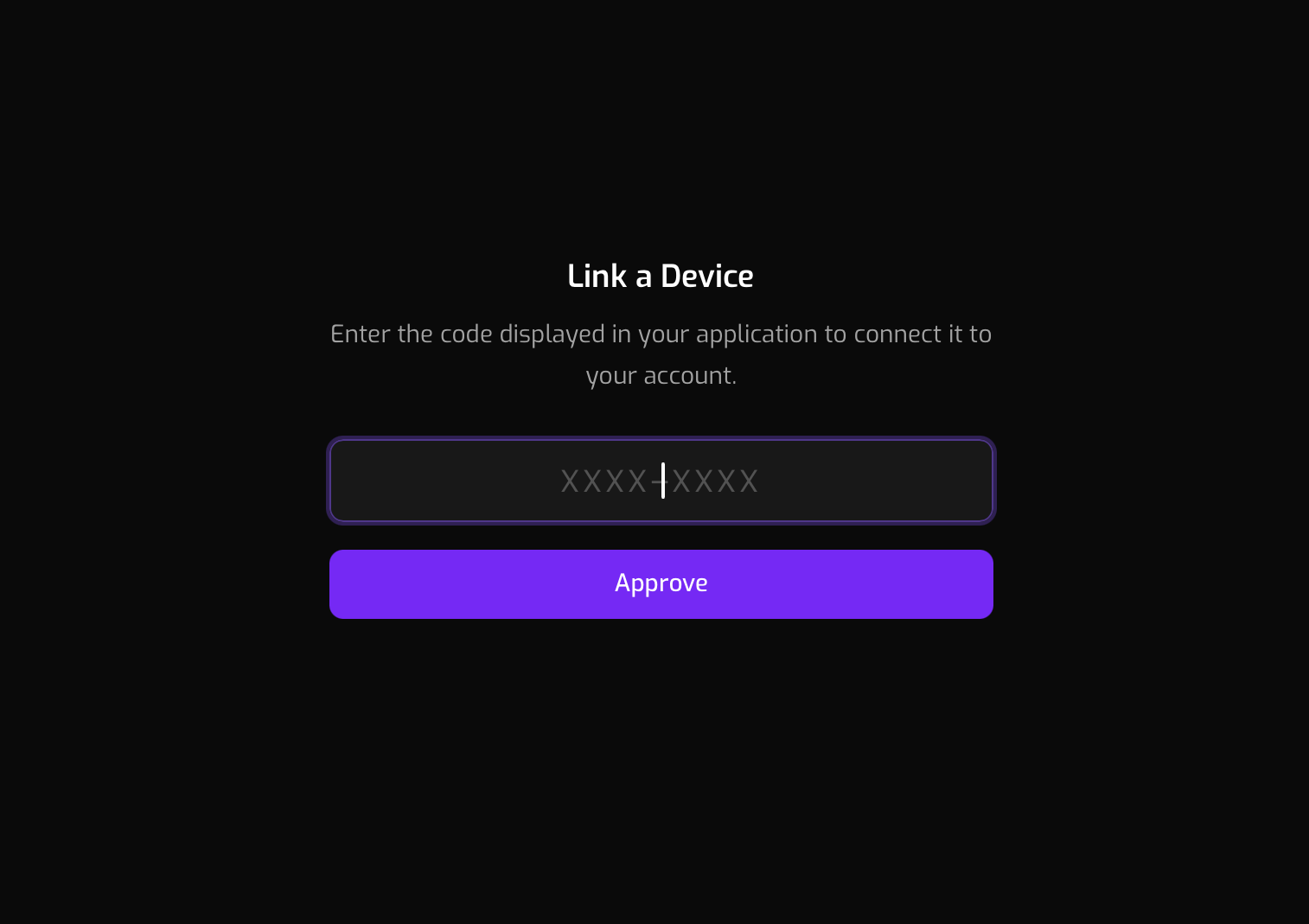
Device Link is a code-based authorization flow. You receive a short code in WaveDrive, enter it in WavePlan’s Security settings, and the two are permanently linked. No password is stored in the app. For full details on Device Link authorization, see the WavePlan Device Linking documentation.
Linking WaveDrive
-
1
Open WaveDrive from your menu bar and click Link Account.
-
2
A device code appears in the WaveDrive window.
-
3
In WavePlan, go to Settings → Privacy & Security → Device Linking.
-
4
Enter the device code and click Authorize. WaveDrive will detect the approval automatically.
WaveDrive requests the library:read, library:upload, and library:delete abilities. You can revoke access at any time from WavePlan's Security settings.