App Profiles
Application Profiles
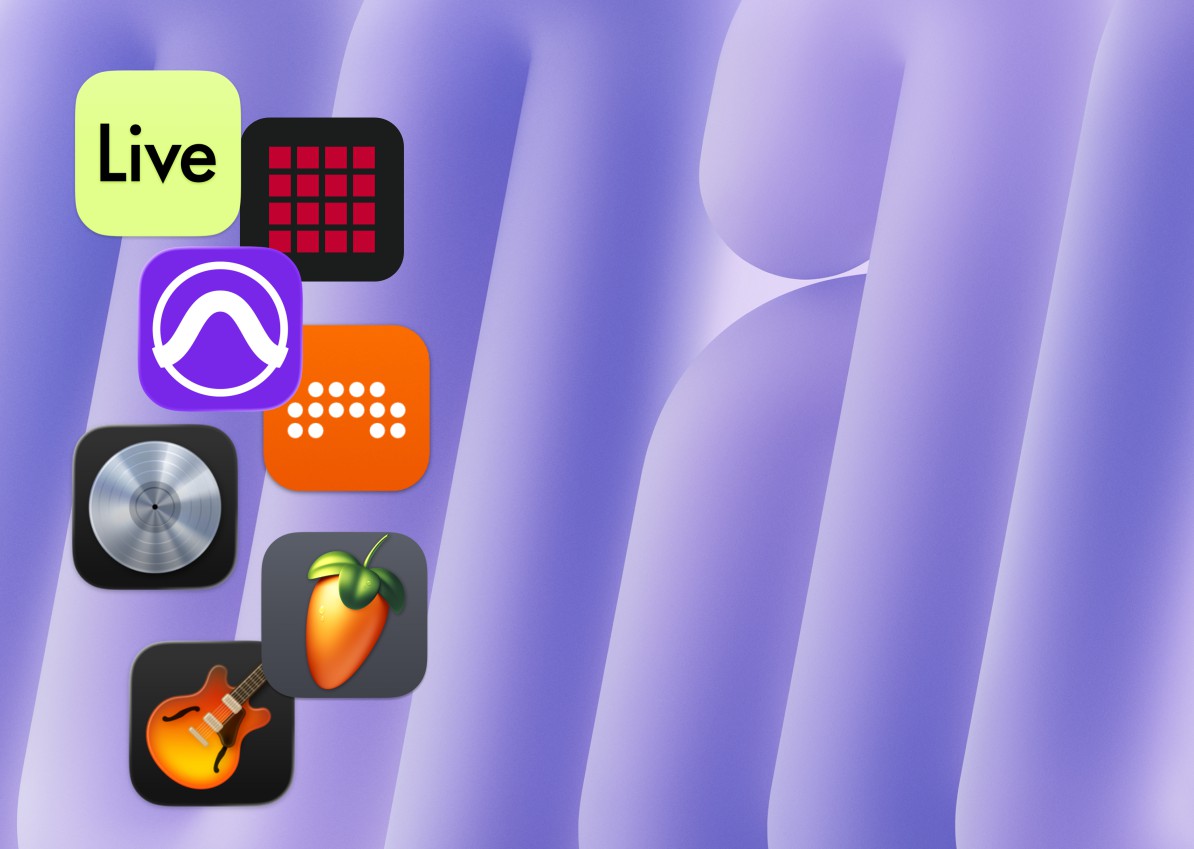
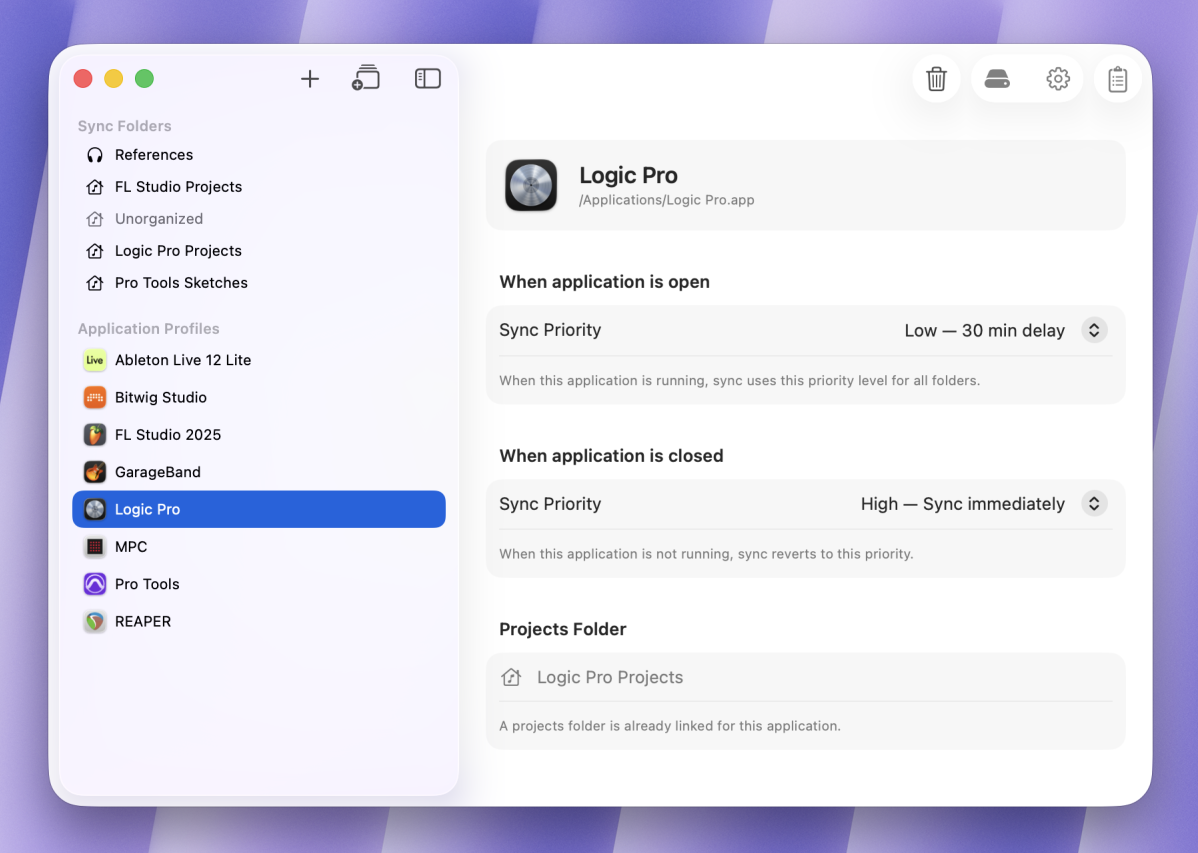
Each program you tell WaveDrive about has its own application profile — with independent sync priority that can be enabled per synchronization folder bookmark.
We built WaveDrive for pro-audio applications but it's possible to go beyond digital audio workstation projects. Feel free to create an Application Profile for any app that writes directly to a sync folder. When the app is running, WaveDrive will respect your bookmark's priority settings for this application.
-
Application Specific
WaveDrive treats Pro Tools, Logic Pro and Ableton Live as entirely separate profiles, each with its own guard level
-
Decoupled Bookmarks
Bookmarks are application-profile-aware. A folder can be linked to one DAW or shared across several — the configuration has been tailored to handle any pro-audio file-organization strategy.
-
Running Process Detection
WaveDrive watches the running process list to know when your DAW is active. Detection is passive and uses negligible CPU.
- Multiple DAWs
Priority is per-application. If your bookmark is waiting for Logic Pro to settle, your bookmark containing Reaper projects can still be allowed to sync. WaveDrive applies its sync behaviour based on which DAW process it detects.
App Profiles
Creating App Profiles
You're in full control of which applications are monitored by WaveDrive.
Manage your application profiles from the sidebar in WaveDrive's main window.
-
1
Open the main window
Open WaveDrive and if the sidebar is closed, open it up.
-
2
Add the Application
Click Add Application Profile and enter the application’s process name. You can find this in Activity Monitor while the DAW is running (e.g.,Logic Pro X,Pro Tools,Live).
-
3
Configure
Set the sync priority and assign a projects folder for the new entry.
App Profiles
Profile Configuration
Each application profile has a sync priority that controls how WaveDrive responds when that DAW is running.
Sync priority can be configured using the following options:
-
1
High - sync immediately
DAW presence has no effect on sync. Use this when you want continuous sync regardless of what’s running.
-
2
Balanced - 5 minute throttle
Useful for applications that write multiple files simultaneously.
-
3
Low - 30 minute throttle
Useful for applications that hold files open.
-
4
None - pause all sync
All sync activity is suspended while the DAW is running. Events are still captured; the queue drains when the DAW quits. Ideal for recording sessions.
Shortcuts
Each application profile includes a shortcut to configure a bookmark for its own Projects Folder. Recognised DAWs may offer multiple shortcuts where applicable. Clicking the shortcut adds a preconfigured project folder bookmark, all you'll need to do from within the bookmark is choose the sync folder location.